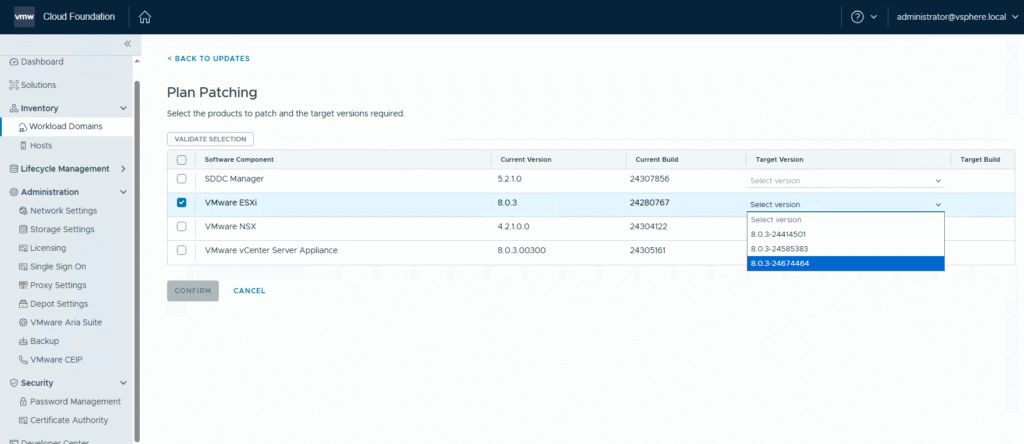
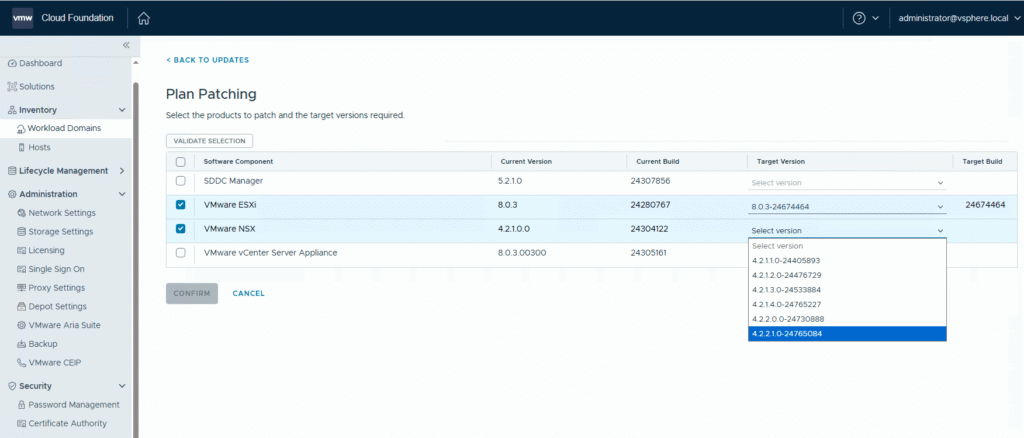
1. Introduction
Following Broadcom’s acquisition of VMware, the update and download mechanisms for vSphere, vCenter, and VCF have changed.
A Download Token is now required to access the new VMware Depot.
In this guide, I’ll walk you through:
- How to create your Download Token
- How to update the Depot URLs in vCenter or SDDC Manager
- How to verify that updates are working again
2. Create Your Download Token
Broadcom provides a dedicated guide on generating your token:
How to create a Broadcom Download Token
3. Download the VMware Depot Change Script
Broadcom also offers a PowerShell script that automatically updates your Depot URLs.
Download link (scroll to the bottom of the page):
VMware Depot Change PowerShell Script
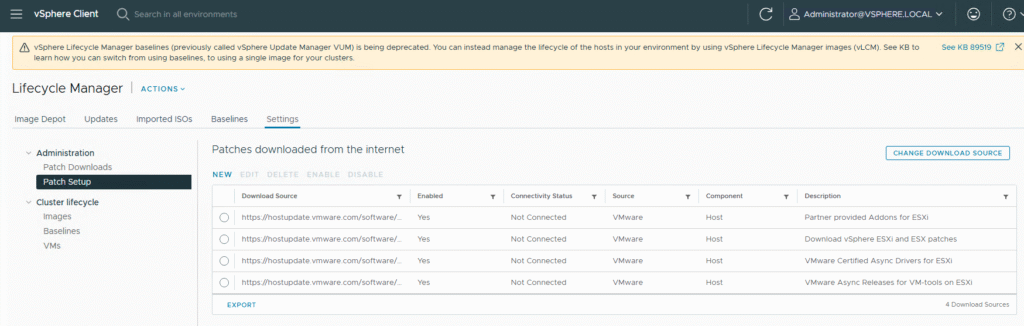
4. Check Current URLs in vCenter
In the Lifecycle Manager view of vCenter, you’ll likely still see the old, now-invalid URLs.
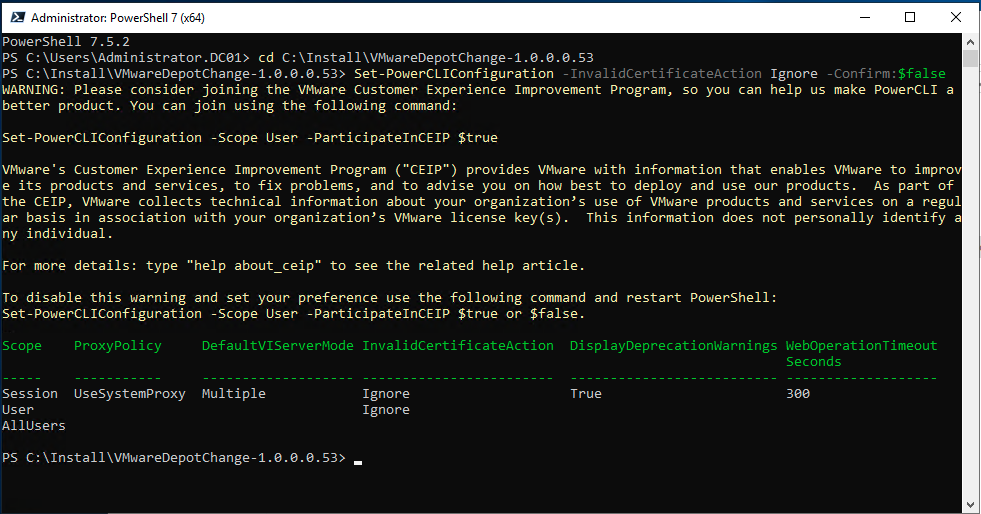
5. Prepare PowerShell
Start PowerShell 7 or later and navigate to the folder where the script is stored.
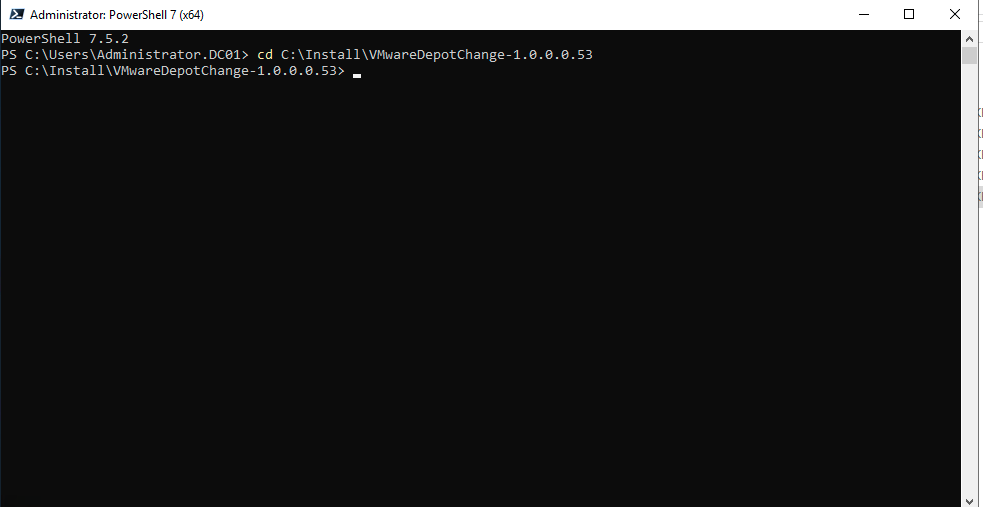
If you are using self-signed certificates, run this command to trust them for SDDC and vCenter:
Set-PowerCLIConfiguration -InvalidCertificateAction Ignore -Confirm:$false
6. Run the Script
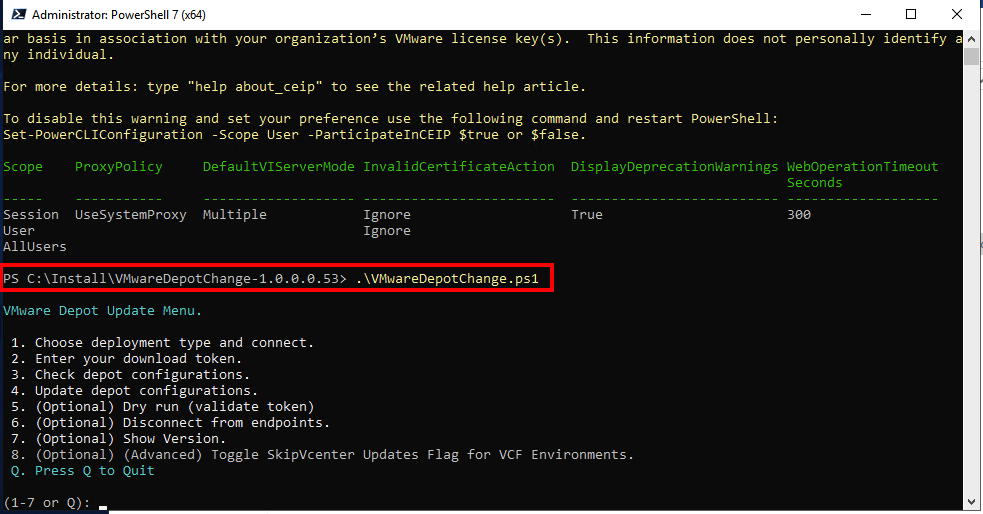
Execute the VMwareDepotChange.ps1 script:
7. Connect to vCenter or SDDC Manager
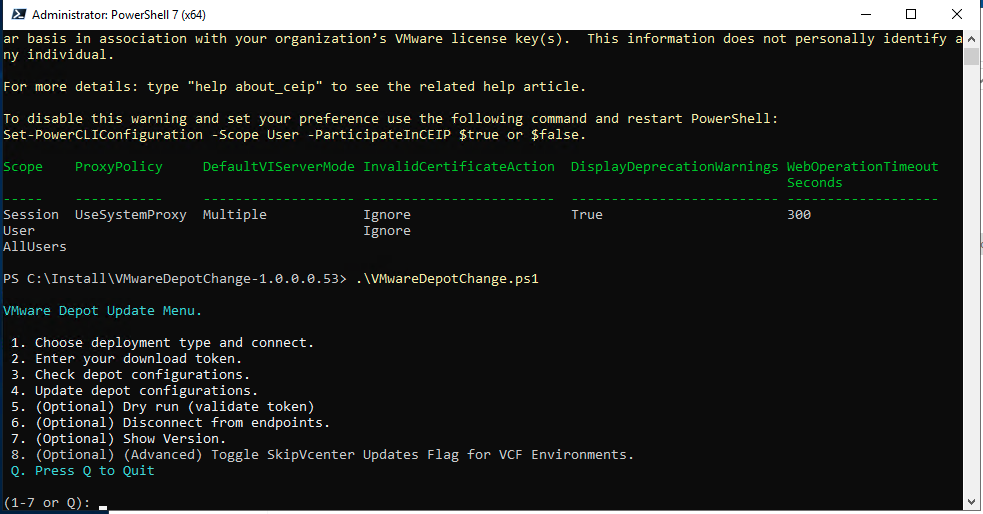
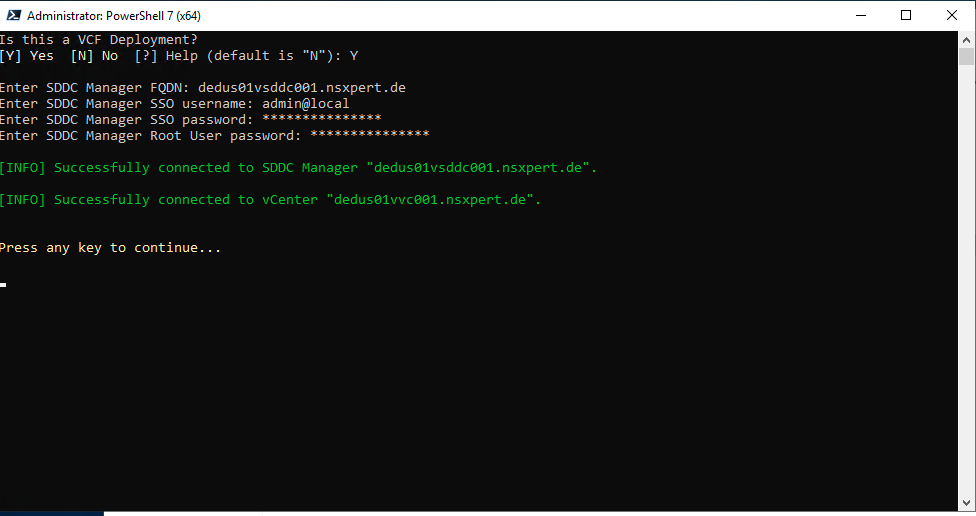
Select Option 1 in the script menu.
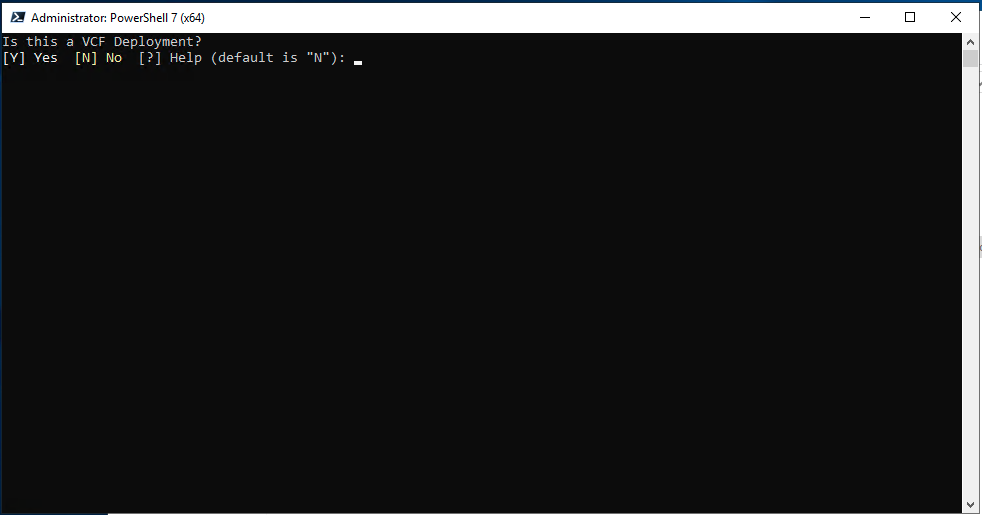
Depending on your deployment:
- Yes (Y) = VCF environment
- No (N) = Standard vSphere environment
In this example, I chose Y for VCF and then entered all SDDC Manager connection details.
For the SSO username, you can use either admin@local from the SDDC Manager or the SSO user from vCenter (e.g. administrator@vsphere.local).
8. Enter the Download Token
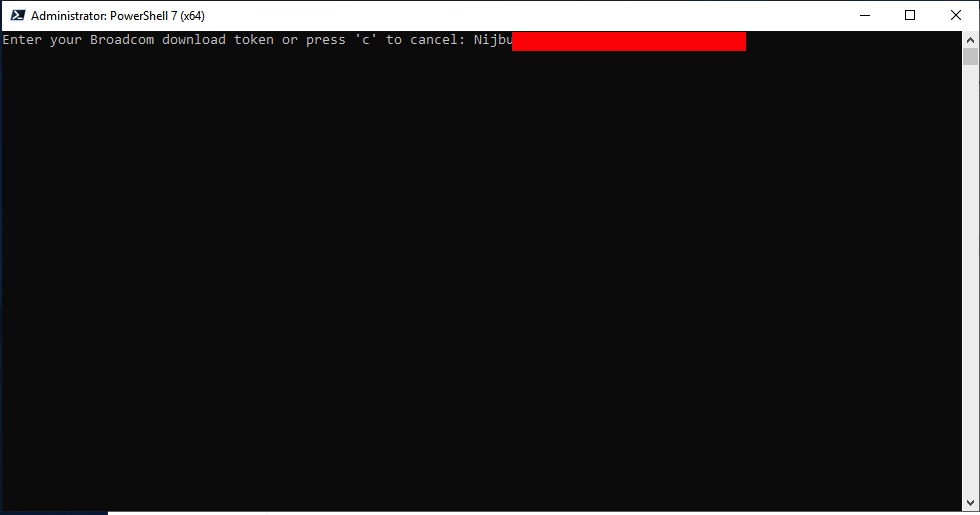
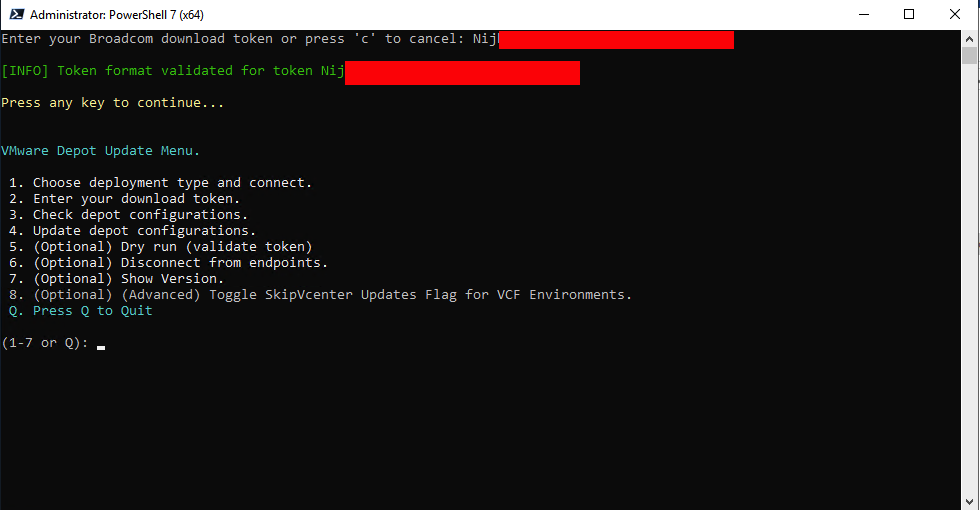
Choose Option 2 and paste in your token.
9. Check Current Depot Configuration
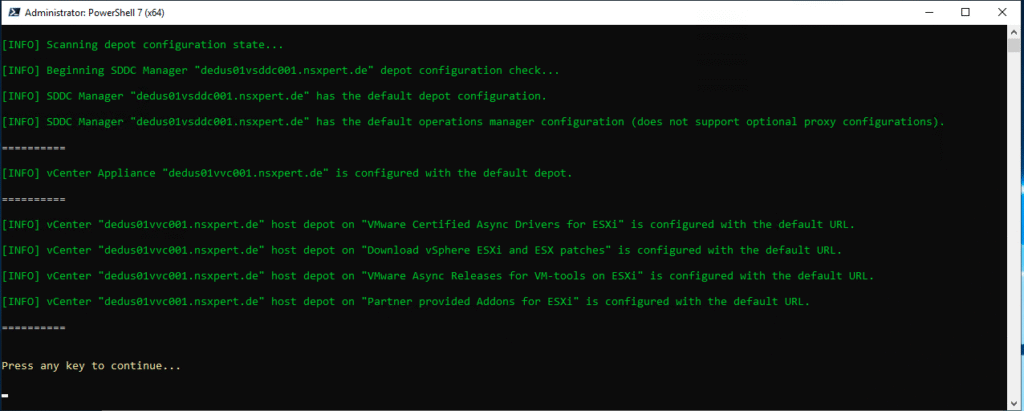
Choose Option 3 — you’ll see the default URLs still in place, which no longer work.
10. Update the Depot URLs
Choose Option 4 — the script will replace all Depot URLs with the new Broadcom URLs automatically.
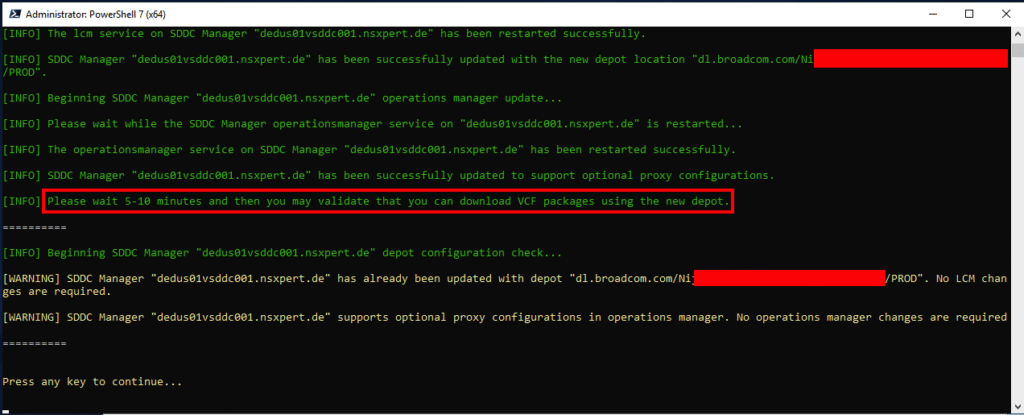
— This process may take a few minutes. Sit back and let it run. —
11. Perform a Dry Run
Choose Option 5 to verify that the new Depot connection works.
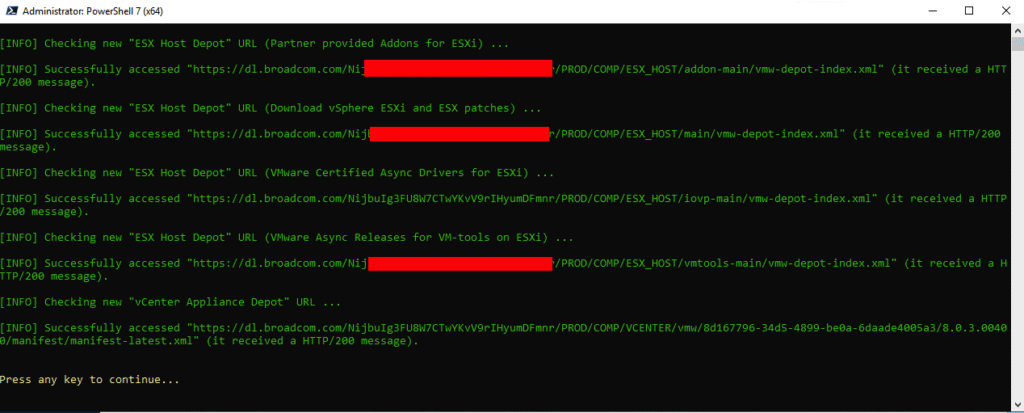
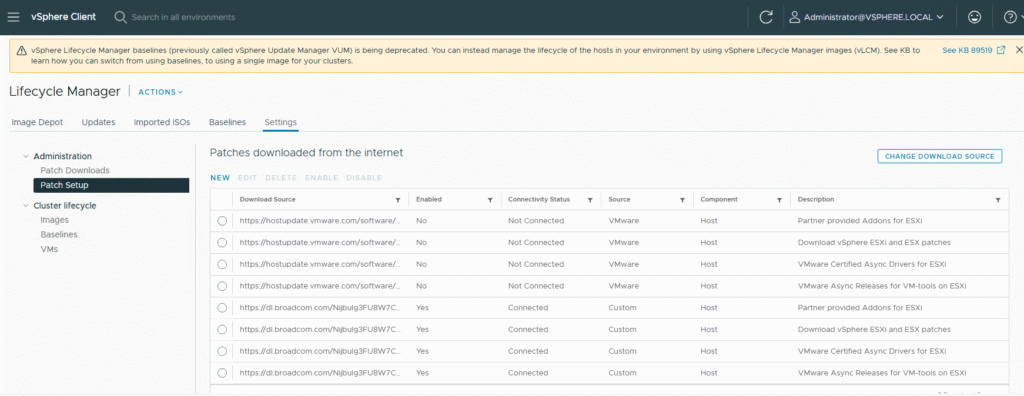
12. Verify New URLs in vCenter
Back in vCenter → Lifecycle Manager, you should now see the updated Depot URLs.
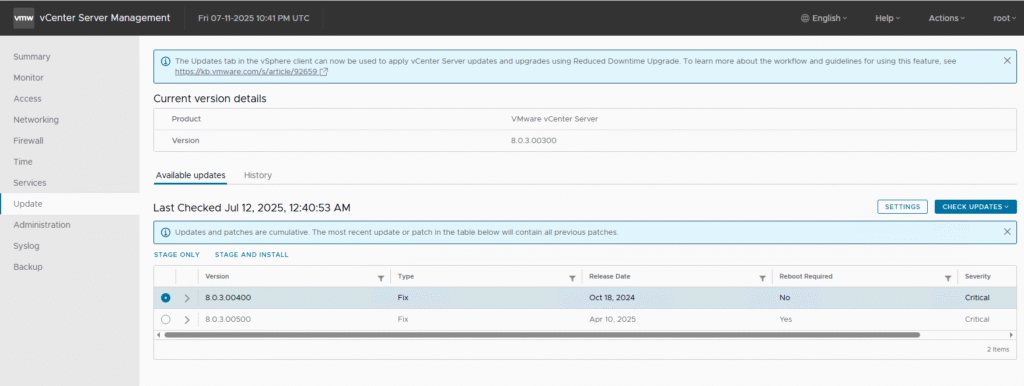
13. Verify Patch Availability
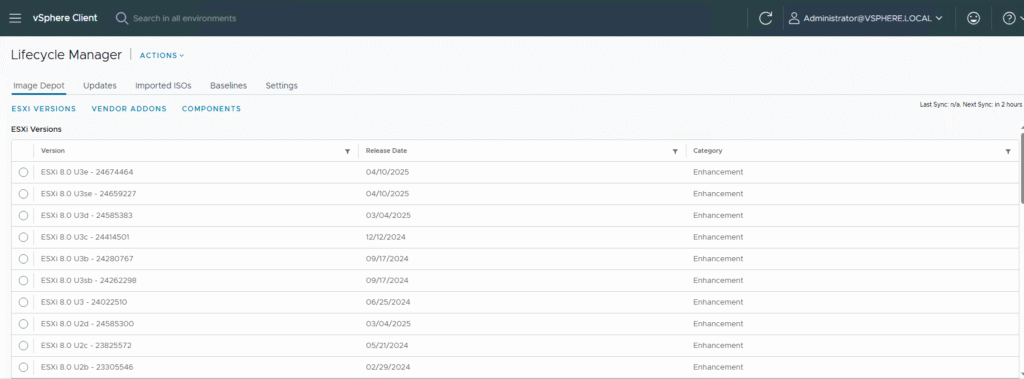
The vCenter should now detect available patches again.
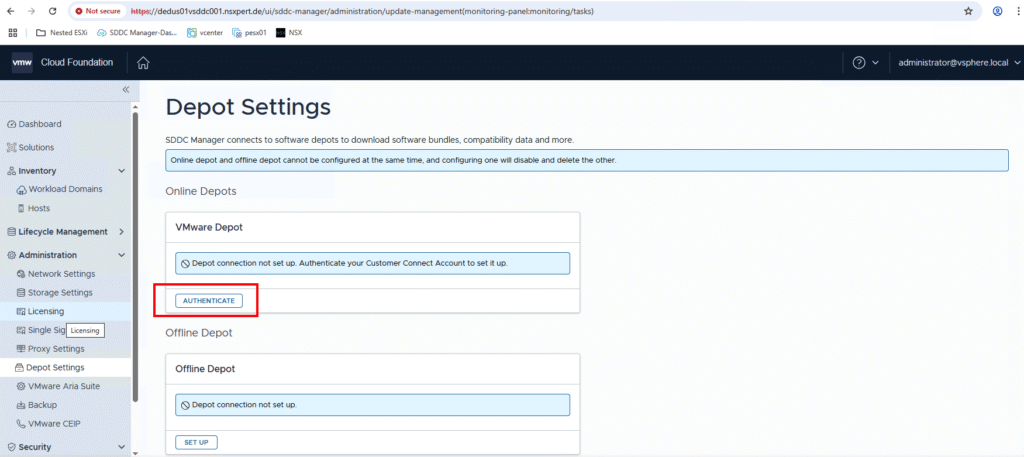
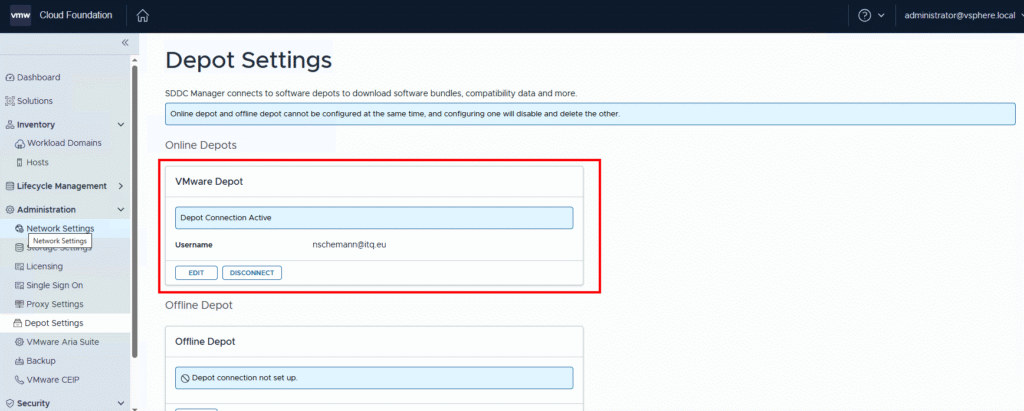
14. Final Setting in SDDC Manager
There’s one last configuration to apply in the SDDC Manager.
15. Check the Update Sync
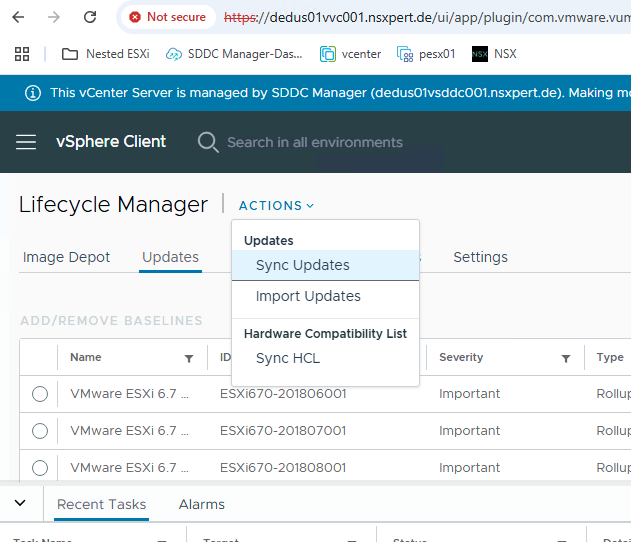
After finishing all settings, it may take some time for vCenter to display new updates.
Check the task bar to see if the update sync is running.

Note: You can trigger it manually via Lifecycle Manager → Actions.
16. Done — Updates Are Working Again
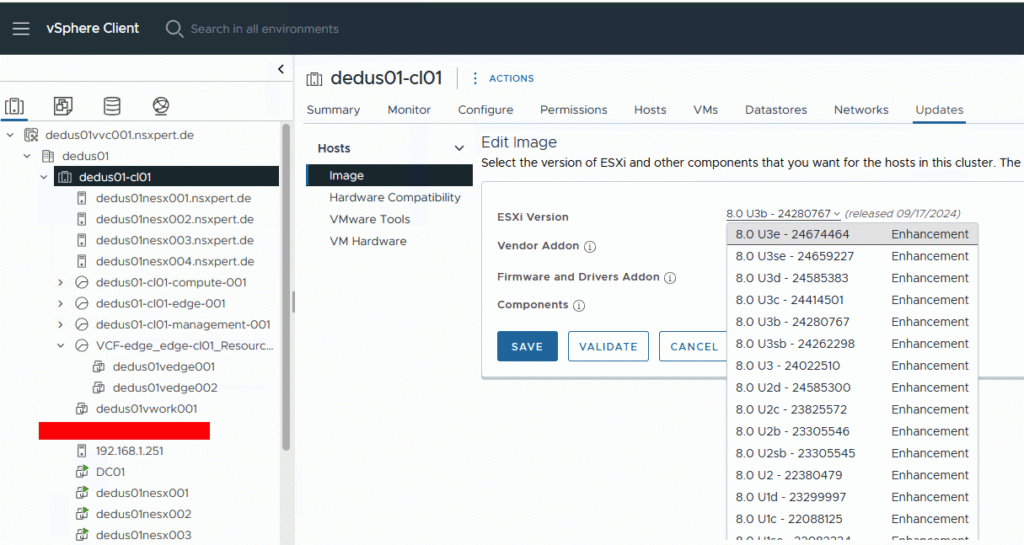
After the sync completes, you should be able to see new updates in both vCenter and SDDC.
vCenter:
SDDC Manager: